Vidya Bala's Blog

Search My Blog

Add RSS Feed

Tuesday, January 30, 2007

Informatica Step by Step to create a Simple Workflow Run successfully:

As a follow-up to my previous post
This post will cover a)How to create Repository User accounts and managing security in Informatica

b)Create a mapping , session, workflow and successfully execute a workflow

How to create Repository User accounts and managing security in Informatica

1) Login to Repository Server Admin console.Connect to the Repository Server
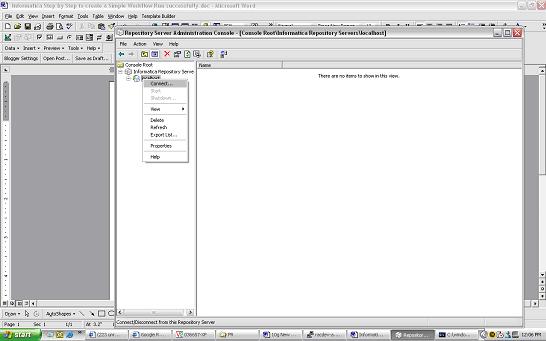


Right click and create new Repository
4)give the following :
repository name
db connect string
db username : pcenter1
db password : pcenter1

license key information

when you click Apply the Repository content will get created.

5)Once the Repository is created loginto Repsoitory Manager
You can loginto the Repository either as
a) The Repository username/ password provided in the above step
b) Or Administrator
Go the Security > Manage Users and Privileges


By default 2 grps are created “Administrator” and “Public”
2 users are created “Administrator” and “Repository User”
Privileges tab lists all the privileges that are available. This security window can be used to manage Security and privileges – refer help guide for further information on security and privileges.

Create a mapping , session, workflow and successfully execute a workflow

I will use the HR schema to demonstrate how you can create a mapping, session and workflow. The HR schema has the following tables

COUNTRIES
DEPARTMENTS
EMPLOYEES
JOBS
JOB_HISTORY
LOCATIONS
REGIONS
COUNTRY_REGION is table that has country_name and region_name.

To populate the country_region table : is a join between the country table and the region table
To create a mapping:

Open Repository Manager – Connect to the Repository and create new folder within the Repository using Repository Manager.
Connect to Designer

Open the folder up and you should see Sources, Targets , Cubes , Dimensions etc.
From the Sources menu import from source Database objects you need: in this case you will import COUNTRIES and REGION
Open Warehouse Designer and Import TargetsImport COUNTRY_REGION from Target Menu.
Sources and Targets Menu should be as above

Open Mapping Designer.
Drop in the sources to the Mapping Designer, Drop in the target as well to Mapping Designer.Include a Join Transform to join appropriately the COUNTRY and REGION table.
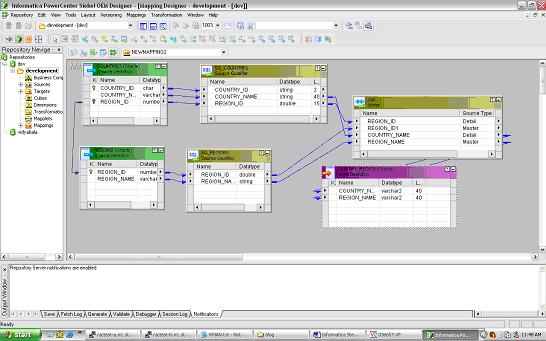
Name the mapping as COUNTRY_REGION_MAPPING. While saving the mapping make sure parsing completed with no errors. Errors will be reported on the Output window of the Designer.
Once you have saved the Mapping you can now open up your Workflow Manager to create a session and a workflow.
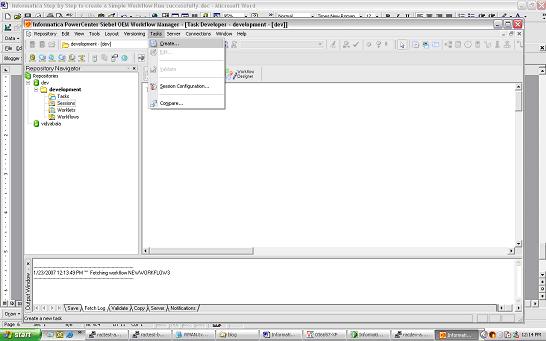
Tasks - Create - creates a new Session or Task
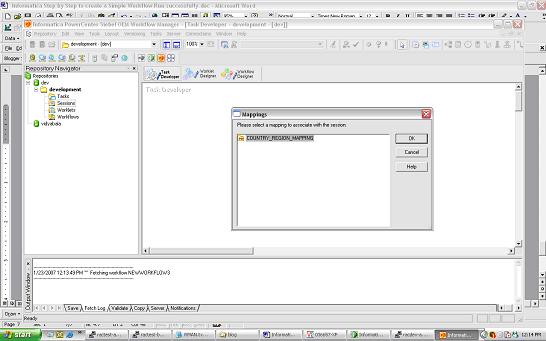
select the COUNTRY_REGION mapping and save the Repository.
Click on Connections/Relational to create 2 new connections for your Source and Target databases.
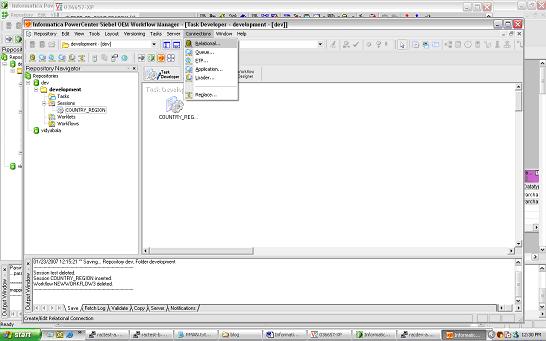
once the connections are created Click on the Task and you should see the following properties window open up
click on the Mappings Tab and verify the connections are set appropriately.
When you are ready to create the Workflow – Open Workflow Designer and drag and drop the mapping.
Name the Workflow as COUNTRY_REGION_WORKFLOW
Save Repository and in the Output window verify that the workflow is valid.

Before you start running the workflow make sure to register the Power Center Server

Open Workflow Manager – Server – Server Registrationgive all the Power Center Server Registration Properties and define your PMRootDir
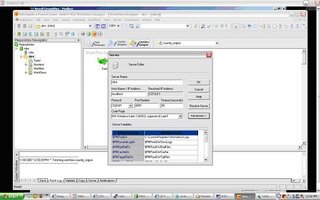
Click OK and , Right Click Server and assign the workflow you want to run using the Server. Once you have assigned the workflow to the server you can start the workflow – right click the workflow and click start
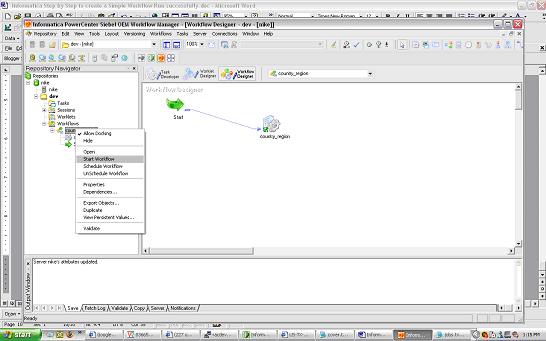
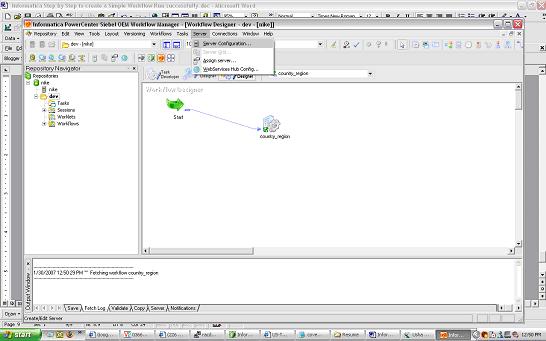
workflow monitor should start indicating the status of the run
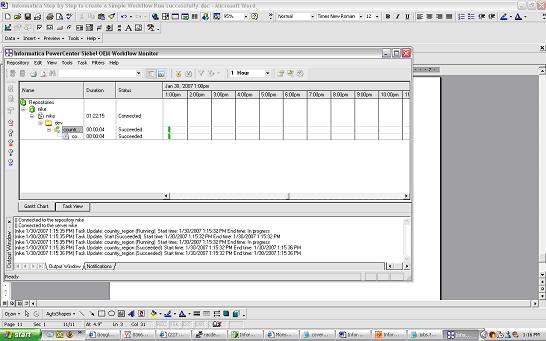
Right click the workflow and task and you should be able to view the workflow log and session log. From workflow Manager workflows can also be scheduled.
If you run into any issues running a workflow – feel free to post comments. The next 2 posts will cover a) versioning b)debugging using informatica.

Monday, January 29, 2007

Deployment Options with XML Publisher

This post will discuss the different ways XML Publisher can be used along with Microsoft Word Template builder to generate Reports.

XML Publisher (also called BI Publisher) has the following Deployment options

1) Oracle Applications (will not be discussed in this post)
2) XML Publisher Desktop Edition
Installs XML Publisher Template Builder in Microsoft word that helps you build templates for your Reports. The templates can be stored as rtf files. Following are the Source Data Options using Template Builder in word
a)XML File
b)SQL Query , needs connection information to source database
c)XML Schema
d)XML generated by Siebel Analytics Answers (I have not been able to get this to work , it may be something that will be available in the next releases and more easily integrated in the next few releases of Siebel Analytics)
3) XML Publisher Enterprise Edition
a)provides a web based console that can be used to publish multiple reports
b)XML Publisher enables you to define your reports and separate the data from the layout of the reports .
c)XML Publisher can run on any J2EE compliant Application Server

XML Publisher Desktop Edition:

If you have installed the Desktop Edition


Template Builder Options will be available from MS Word menu.
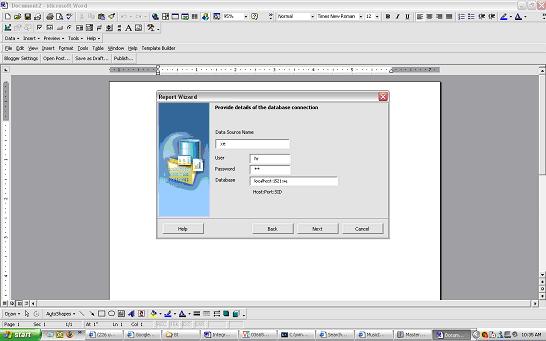
Template Builder – Data – Load XML Data (XML File) , XML Schema , Report wizard (lets you give database connect information and the sql to extract the data)
Below will list a quick example on how the Report Wizard can be used (connecting to the hr schema to get a list of Departments)


give the database connect information and sql query for the data that needs to be retrieved.We will choose the Default Template Layout in this example.
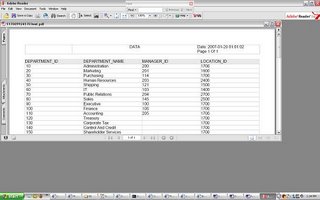
preview the Report and then save the RTF file (in this example we save the RTF file as hr_departments.rtfXML Publisher Enterprise Edition

As mentioned XML Publisher enterprise edition can run on any J2EE compliant Application Server.

The Admin and Reports directories are available under
Install_dir/xmlpserver

The following files have the port numbers used by the application.
HTTP Port 15101 install_dir/default-web-site.xml
RMI Port 15111 install_dir/rmi.xml
JMS Port 15121 install_dir/jms.xml

Default URL to access XML Publisher Application http://host:15101/xmlpserver (default username/pwd admin/admin)

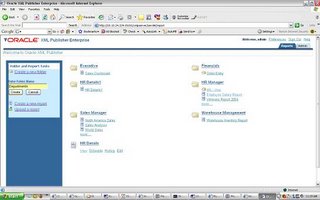
create new folder and new Report in the corresponding folder.
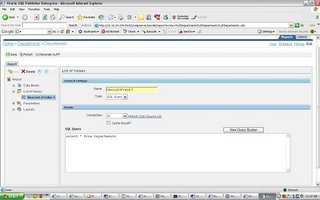
Edit the Report to define the following properties:
i)datasource for the Report (new datasources can be created in the Admin window)
ii)Data Model: Define the sql query

iii)New List of Values: If the Report uses LOV’s

iv)Parameters: if any parameters are needed for the Report
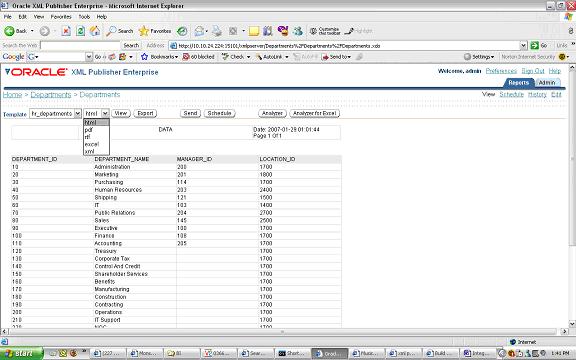
v)Layouts: create a new template called hr_departments
upload hr_departments.rtf and tie it to the hr_departments template.View the results
you can see that the template is chosen by default and the different output formats available. The above is a very simple illustration of how XML publisher will let your users design their own Reports(and manage changes to design templates of reports) while IT can focus on the data needed for the Reports and other important tasks.


Tuesday, January 23, 2007

Oracle Text 9i Bug searching XML Data

My last post I discussed that there was a 9i (9.2.0.6) bug using section_group_type auto section group . This group type automatically creates a zone section for each start-tag/end-tag pair in a XML document. The section names derived from XML tags are case sensitive as in XML.
Searches with auto_section_group work in 9.2.0.6 but not for attributes within a tag. For example
Book title="A" author="B"
attributes title and author cannot be searched using auto_section_group section type in 9.2.0.6. The bug has been fixed in 9.2.0.8

Thursday, January 11, 2007

9i bug using Oracle Text to search XML data

Using Oracle Text to Search XML Data: XML Data inserted in DATA column in TEST table

Create table test(id integer,DATA CLOB)


Department name="CS"
Employee
Vidya Bala
/Employee
/Department


Step1:
--------

Create an auto section group

begin
ctx_ddl.create_section_group('myautosectiongroup', 'AUTO_SECTION_GROUP');
end;

Step2:
-------
create index test_index on test(DATA)
indextype is ctxsys.context
parameters ('SECTION GROUP myautosectiongroup');

Step3:
---------
SELECT DATA FROM TEST
WHERE CONTAINS(DATA, 'Vidya WITHIN Employee') > 0;
1 Row Returned

SELECT DATA FROM TEST
WHERE CONTAINS(DATA, 'CS WITHIN Department@name') > 0;

0Rows (10g returns 1 row – 9i returns no row – Support is working on getting bug fix for the issue)

Tuesday, January 09, 2007

OracleXml putxml limitations

OracleXml putxml limitations:

Example1:xml file(test.xml):

ROWSET
ROW num="2"
ID 15 /ID
/ROW
/ROWSET

(using the java API for XDK) the below command
java OracleXML putXML -user "vidya/vidya" -ignorecase –filename "test.xml" "emp"

will load one row into table emp.

Example2:Xml file with namespaces (test1.xml):

ns:EMP
ns:ITEM
ns:ID 2 /ns:ID
/ns:ITEM
/ns:EMP

(using the java API for XDK) the below command
java OracleXML putXML -user "vidya/vidya" -ignorecase –filename "test1.xml" "emp"

if “OracleXML” cannot identifiy the ROWTAG the above command can be modified as below

java OracleXML putXML -user "vidya/vidya" -ignorecase –rowtag “ITEM” –filename "test1.xml" "emp"

note the above will error as OracleXML doesn’t seem to be working on
a file with namespaces. The only way to probably get around this is by applying a stylesheet.

Thursday, January 04, 2007

Siebel Analytics Answers and Dashboards (a quick getting started guide based on HR schema)

Siebel Analytics Answers and Dashboards (a quick a quick getting started guide based on HR schema)

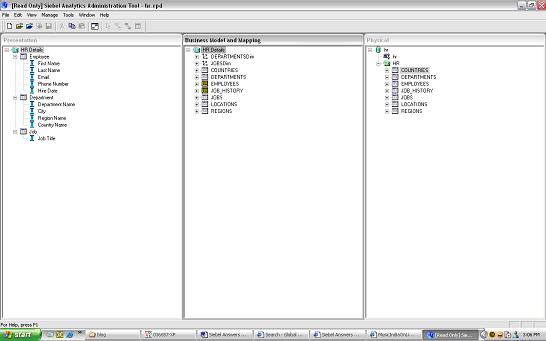
The last post on Sibel Analytics discussed how we build a physical , Business and presentation layer using Siebel Analytics Administration.
This post will focus on using Answers and Dashboards.
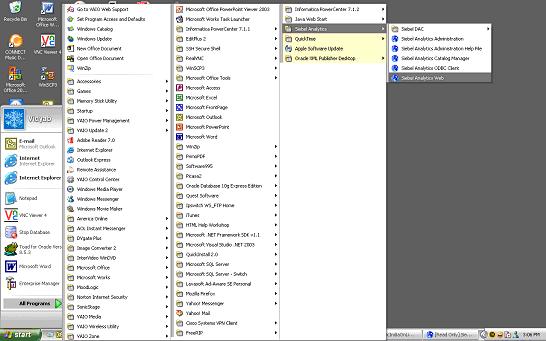
Make sure Siebel Analytics Web is up.
For the purpose of this post , I have demonstrated on how you can build Reports using “Answers” against the “hr” schema.

Physical Layer - Make sure to define the object relationships appropriately in the physical layer
COUNTRIES
DEPARTMENTS
EMPLOYEES
JOB_HISTORY
JOBS
LOCATIONS
REGIONS

Busines Layer - Make sure to define the object relationships appropriately in the Business layer
COUNTRIES
DEPARTMENTS
EMPLOYEES
JOB_HISTORY
JOBS
LOCATIONS
REGIONS

Dimensions:
Department Dimension (3 level Dimension)
-Department
-Region
-Country
Job Dimension
-Job Detail

Presentation Layer defined as follows:
Employee
First Name
Last Name
Email
Phone Number
Hire Date
Department
Department Name
City
Region Name
Country Name
Job
Job Title


Once the Presentation Layer is defined you are ready to move on to Answers to build your Siebel Analytics Reports


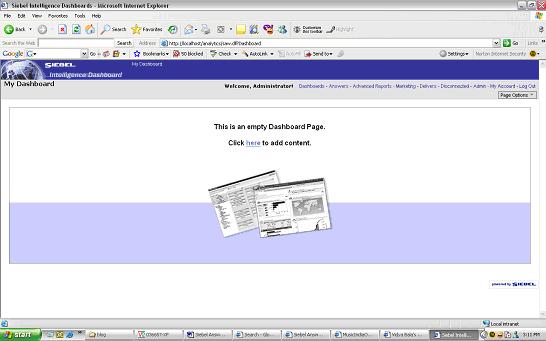
If you have all Siebel Client Tools on your Desktop ; Siebel Analytics web will take you to the Analytics web page


The default installation
Default username : AdministratorDefault password: no password
once you have logged in you will see the following Tabs
Dashboards,Answers, Advanced Reports,Marketing,Delivers,Disconnected,Admin,My-Account

Step1:
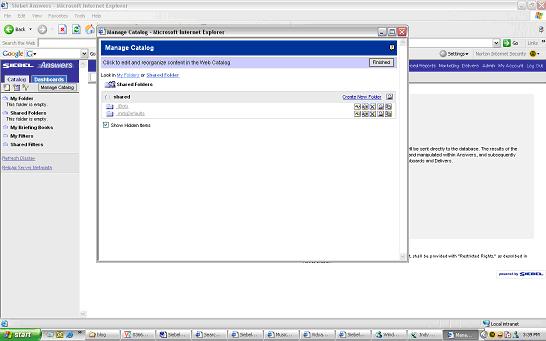
Before proceeding to answers to create Reports let us first create a Shared Folder named “hr” where we can save our Reports. Click on Answers and on the left hand side you should see My Folder > Shared Folder > Manage Catalog

click on Manage catalog > Shared Folder and you should be able to create a new folder
make sure to Refresh Display to verify that the changes have taken effect

Step2:
Now you are ready to create Reports using Answers
Click on Answers > Answers is basically your web interface to building Reports
on the right handside you should see Subject areas
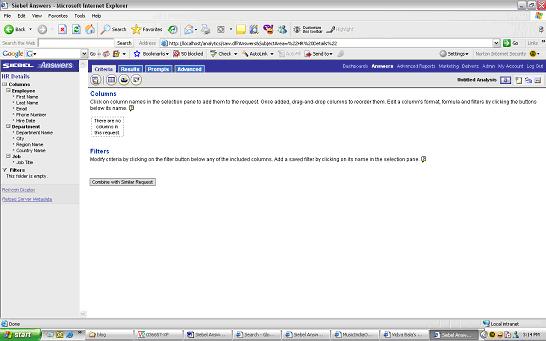
click on HRDetails
you will now see on the left hand side bar all the Data Items that were defined in the Presentation Layer defined available in Answers
Employee
First Name
Last Name
Email
Phone Number
Hire Date
Department
Department Name
City
Region Name
Country Name
Job
Job Title

Example1 – Report1
To build a Report
First Name,LastName,Department Name,Country Name, Region Name, City
Click on the attributes so that they appear under columns:

click on Results and you should see the Results
save your Report to the “hr” shared folder.

The above Report was HR Employee Demographic Details (List of employees by name,department,city,county)


Example2 – Report 2

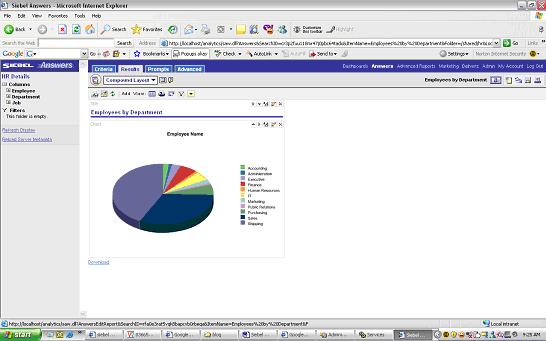
Pie Chart to give an overview of number of employees by DepartmentClick on create new request

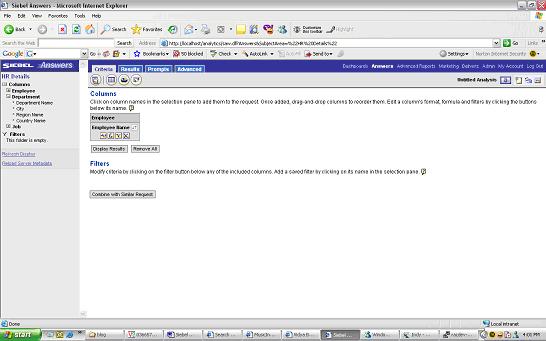
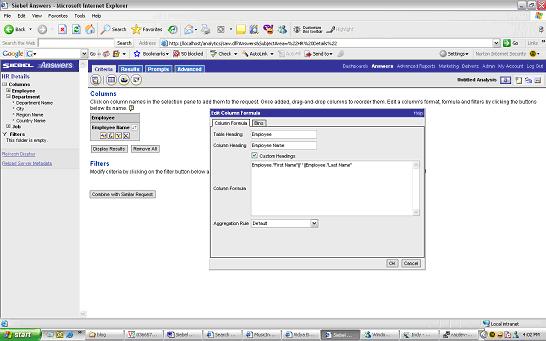
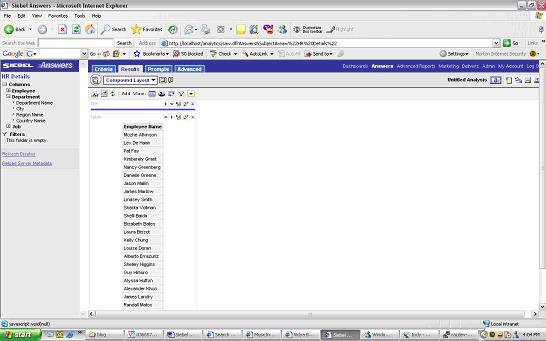
Edit Column formula to display first name and last name as a single column called “Employee Name”

The next step would be to get a count of employees by DepartmentCriteria Tab add Department name and modify “Employee Name” column formula to “count(Employee."First Name"' ' Employee."Last Name")”
The Results would be as above. Now to covert this to a pie chart (make sure to start Siebel Analytics Java Host)
Click on the Pie Chart
Save the Request as “Employees by Department”

Example 3:We now have 2 Reports

“Employees by Department”
“HR Employee Demographic Details”

lets now add the above 2 Reports to a Dashboard

Click on the Admin Tab

Click on Manage Intelligence Dashboards.

Create Dashboard. Name the dashboard as “HR Details”
you should see the “HR Details” dashboard appear near the “My Dashboard”
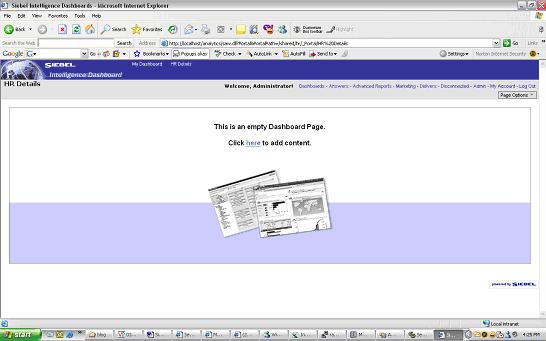
Click to Add content and you should be able to add the 2 Reports we created in the “hr” shared folder.
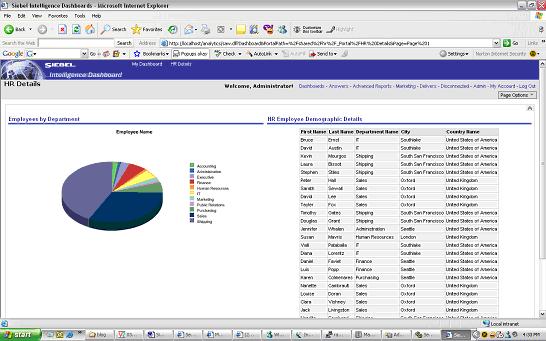
The output would be as below

The layout can be changed by editing properties of sections in the Dashboard

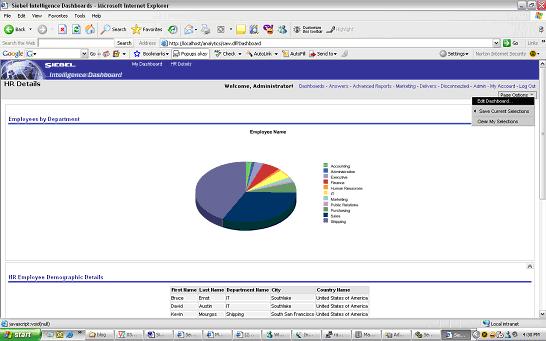
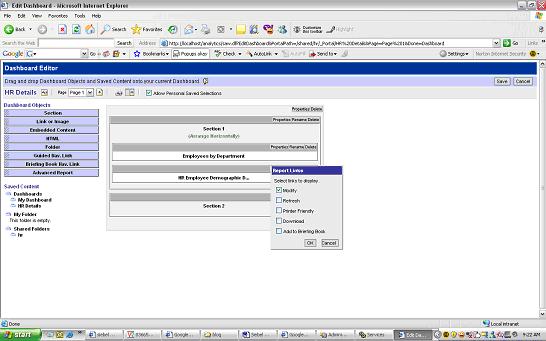
Page Option > Edit Dashboard
Click on the Properties Tab of sections if you want to edit the layout of sections.In the below view we have arranged the Reports Horizontally.
Example 4: Drill down from the Pie Chart to the Report Table in the HR Details Dashboard.

a)To Navigate from Dashboard to Answers easily include the modify link in the Dashboard.Page Options > Edit Dashboard
for each section select Properties > Report Links > Modify. Save and go back to Dashboard now you should see the modify links.
b) To set the navigate link on the Pie Chart.Modify the pie chart > Results > edit view of the pie chart


select Additional Charting Options
Interaction Tab > select Navigate > and give the Navigation Page > “HR Details” Dashboard Page 1
c) Add an is prompted filter to the Table Report

from the dashboard click on Modify link of the Table. This will take you to criteria tab on Answers.Add a filter and set Department Name to “is prompted” and save the filter
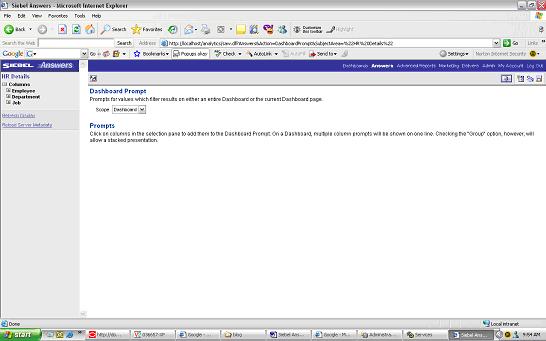
d) create a Dashboard Prompt click on Answers
you should see an icon on the Left Menu to create a new Dashboard Prompt
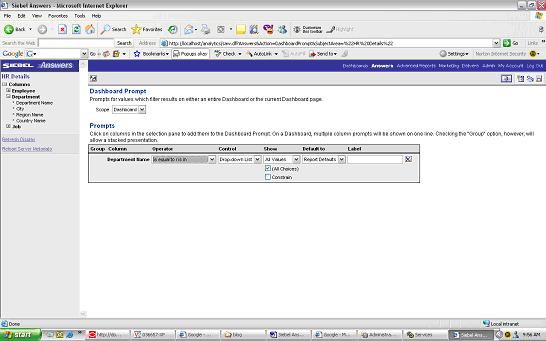
scope=Dashboardselect the column name on which you want to set the prompt to
save the Dashboard Prompt.
Now go to your Dashboard > Edit Page Options > Drop the Dashboard Prompt in the Section you would like to appear in and you should now see the Prompt on your Dashboard

you can drill down by Department Name from the Dashboard Prompt drop down.
e) column sorting on Employee Demographic details
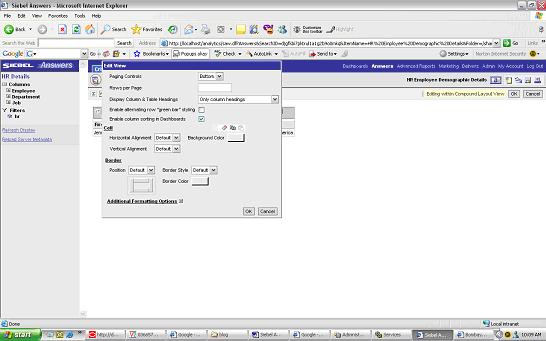
assume you also wanted the ability to sort by columns on the Table Report.Click on the Modify link on the Table Report > go to the Results Tab on Answers> Click on the edit view of the Table and then edit Table properties

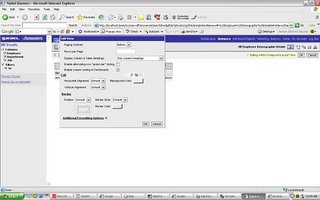
check “ enable column sorting on Dashboard”

At this point you have a fully functional Dashboard with Drill down ability both from the Dashboard prompt and from the pie chart to the Table.

The next posts will discuss:
1)XML Publisher and Answers/Dashboards

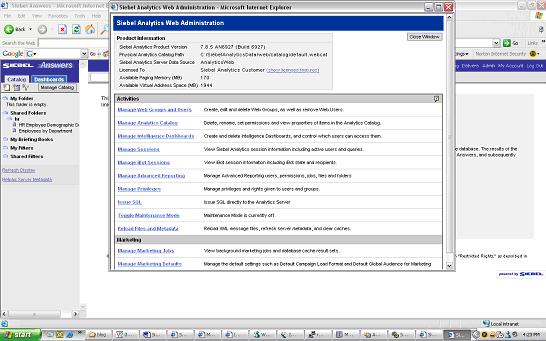
2)Admin Options with Answers(managing security, ibots etc)

Wednesday, January 03, 2007

Informatica Eval Install

I checked out statcounter on my blog to see what the Response was after a long time.While I can see that my blog hitcount is increasing slowly– the most frequently searched key word that led to my blog was “Informatica eval install”. In one of my previous posts I mentioned that I will follow-up on Install Instruction for an Informatica eval install. So here it goes – finally
Step1
Download Informatica eval install software and license keys.
This was not an easy search for me but finally managed to find where the third party software is.Below are the part numbers you need to downloadLogon to edelivery.oracle.com


Download B27745-01 Part 1 of 4 Parts 1 through 4 – Siebel Business Applications. Extract the zip files and you should find the eval software for Informatica. Informatica eval license keys can be found in B27757-01 and B27756-01 documentation.
Once you have downloaded and extracted the zip files, go through setup.exe , make sure to install the Server Components and Client Tools


As discussed in my previous post , Informatica has 4 components to it : Client Tools; Repository Server; Informatica Server and Repository.

At the end of the Install you will have to configure the Repository Server and the Informatica Server.

Configure Repository Server Below:
The following Information needs to be provided:
Server Port Number : 5001 (default can be chosen)
Admin password : enter an Admin Password for the Repos Server
Minimum Port Number
The minimum port number the Repository Server can assign to the Repository Agent process. Default is 5002.
Maximum Port Number
The maximum port number the Repository Server can assign to the Repository Agent process. Default is 65535.
Configuration Directory
The name of the directory in which the Repository Server stores repository configuration information files. You can specify either a relative path or an absolute path. Default is Config.
Backup Directory
The name of the directory in which the Repository Server stores repository backup files. You can specify either a relative path or an absolute path. Default is Backup.
Plugin Directory
The name of the directory in which the Repository Server stores repository plugin files. You can specify either a relative path or an absolute path. Default is Plugin.
Severity Level
The level of error messages written to the Repository Server log. Specify one of the following:
Error. Writes ERROR code messages to the log.
Warning. Writes WARNING and ERROR code messages to the log.
Information. Writes INFO, WARNING, and ERROR code messages to the log.
Tracing. Writes TRACE, INFO, WARNING, and ERROR code messages to the log.
Debug. Writes DEBUG, TRACE, INFO, WARNING, and ERROR code messages to the log.
Output to Event Log
Enable this option if you want to write Repository Server messages to the Windows Event Log. This option is enabled by default.
Output to File
Enable this option if you want to write Repository Server log messages to a file. When you enable this option, enter a file name for the Repository Server log. This option is disabled by default. The default Repository Server log file name is pmrepserver.log. The Repository Server stores the Repository Server log file in the Repository Server installation directory.


Configure Informatica Server (PowereCenter Server) as a Service:
Information that needs to be provided is as below:
Server Tab:
Server Name: The name of the PowerCenter Server to register with the repository. This name must be unique to the repository. This name must also match the name you specify when you use the Workflow Manager to register the PowerCenter Server.
TCP/IP Host Address: The TCP/IP host address as an IP number (such as 123.456.789.1), or a local host name (such as RECDB), or a fully qualified name (such as RECDB.INVOICE.COM). If you leave this field blank, the PowerCenter Server uses the default local host address.
Max No. of Concurrent Sessions: The maximum number of sessions the PowerCenter Server runs at a time. Increase this value only if you have sufficient shared memory. Default is 10.
Shared Memory: The amount of shared memory available for use by the PowerCenter Server Load Manager process. For every 10 sessions in Max Sessions, you need at least 2,000,000 bytes reserved in Load Manager Shared Memory. Default is 2,000,000 bytes.
Error Severity Level for Log Files: The level of error messages written to the PowerCenter Server log. Specify one of the following message levels:
Error. Writes ERROR code messages to the log.
Warning. Writes WARNING and ERROR code messages to the log.
Information. Writes INFO, WARNING, and ERROR code messages to the log.
Tracing. Writes TRACE, INFO, WARNING, and ERROR code messages to the log. Debug. Writes DEBUG, TRACE, INFO, WARNING, and ERROR code messages to the log.
Fail Session if Maximum Number of Concurrent Sessions Reached: Enable this option if you want the PowerCenter Server to fail the session if the number of sessions already running is equal to the value configured for Maximum Number of Concurrent Sessions. If you disable this option, the PowerCenter Server places the session in a ready queue until a session slot becomes available. This option is disabled by default.
Allow mapping/session debugging: If selected, you can run the Debugger. This option is enabled by default.
Time Stamp Workflow Log: Enable this option if you want to append a time stamp to messages written to the workflow log. This option is disabled by default.
Output to Event Log: Enable this option if you want to write PowerCenter Server messages to the Windows Event Log. This option is enabled by default.
Output to File: Enable this option if you want to write PowerCenter Server log messages to a file. When you enable this option, enter a file name for the PowerCenter Server log.


Repository Tab:
Repository Name :
The name of the repository to connect to. You create a repository in the Repository Server Administration Console.
Repository User: The account used to access the repository. When you first create a repository, the Repository User is the database username. You create other Repository Users in the Repository Manager.
Repository Password : The password for the Repository User. When you first create a repository, the password is the password for the database user.
Repository Server Host Name: The name of the machine hosting the Repository Server.
Repository Server Port Number: The port number the Repository Server uses to communicate with repository client applications.
Repository Server Timeout: The maximum number of seconds that the PowerCenter Server tries to establish a connection to the Repository Server. If the PowerCenter Server is unable to connect to the Repository Server in the time specified, the PowerCenter Server shuts down. Default is 60 seconds.

Licenses Tab:
Enter the license Key’s and then click update

Compatibility and Database Tab:
PMServer 3.X aggregate compatibility: If selected, the PowerCenter Server handles Aggregator transformations as it did in PowerMart 3.x. This overrides both Aggregate treat nulls as zero and Aggregate treat rows as insert.
If you select this option, the PowerCenter Server treats nulls as zeros in aggregate calculations and performs aggregate calculations before flagging records for insert, update, delete, or reject in Update Strategy expressions. If you do not select this option, the PowerCenter Server treats nulls as nulls and performs aggregate calculations based on the Update Strategy transformation.
PMServer 6.X Joiner source order compatibility: If selected, the PowerCenter Server processes master and detail pipelines sequentially as it did in versions prior to 7.0. The PowerCenter Server processes all data from the master pipeline before starting to process the detail pipeline. Also, if you enable this option, you cannot specify the Transaction level transformation scope for Joiner transformations. If you do not select this option, the PowerCenter Server processes the master and detail pipelines concurrently.
Aggregate Treat Nulls as Zero: If selected, the PowerCenter Server treats nulls as zero in Aggregator transformations. If you do not select this option, the PowerCenter Server treats nulls as nulls in aggregate calculations.
Aggregate Treat Rows as Insert : If selected, the PowerCenter Server performs aggregate calculations before flagging records for insert, update, delete, or reject in Update Strategy expressions. If you do not select this option, the PowerCenter Server performs aggregate calculations based on the Update Strategy transformation.
PMServer 4.0 date handling compatibility: If selected, the PowerCenter Server handles dates as in PowerCenter 1.0/PowerMart 4.0. Date handling significantly improved in PowerCenter 1.5 and PowerMart 4.5. If you need to revert to PowerCenter 1.0 or PowerMart 4.0 behavior, you can configure the PowerCenter Server to handle dates as in PowerCenter 1.0 and PowerMart 4.0.
Treat CHAR as CHAR on Read: If you have PowerCenter Connect for PeopleSoft, you can use this option for PeopleSoft sources on Oracle. You cannot, however, use it for PeopleSoft lookup tables on Oracle or PeopleSoft sources on Microsoft SQL Server.
Max LKP/SP DB Connections: Allows you to specify a maximum number of connections to a lookup or stored procedure database when you start a workflow. If the number of connections needed exceeds this value, session threads must share connections. This can result in a performance loss. If you do not specify a value, the PowerCenter Server allows an unlimited number of connections to the lookup or stored procedure database.
If the PowerCenter Server allows an unlimited number of connections, but the database user does not have permission for the number of connections required by the session, the session fails. A default value is not specified.
Max Sybase Connections: Allows you to specify a maximum number of connections to a Sybase database when you start a session. If the number of connections required by the session is greater than this value, the session fails. Default is 100.
Max MSSQL Connections: Allows you to specify a maximum number of connections to a Microsoft SQL Server database when you start a workflow. If the number of connections required by the workflow is greater than this value, the workflow fails. Default is 100.
Number of Deadlock Retries: Allows you to specify the number of times the PowerCenter Server retries a target write on a database deadlock. Default is 10.
Deadlock Sleep Before Retry (seconds): Allows you to specify the number of seconds before the PowerCenter Server retries a target write on database deadlock. Default is 0 and the PowerCenter Server retries the target write immediately.

Configuration Tab
Data Movement Mode: Choose ASCII or Unicode. The default data movement mode is ASCII, which passes 7-bit ASCII character data. To pass 8-bit ASCII and multibyte character data from sources to targets, use Unicode mode.
Validate Data Code Pages: If you enable this option, the PowerCenter Server enforces data code page compatibility. If you disable this option, the PowerCenter Server lifts restrictions for source and target data code page selection, stored procedure and lookup database code page selection, and session sort order selection. This option is only available when the PowerCenter Server runs in Unicode data movement mode. By default, this option is enabled.
Output Session Log In UTF8: If you enable this option, the PowerCenter Server writes to the session log using the UTF-8 character set. If you disable this option, the PowerCenter Server writes to the session log using the PowerCenter Server code page. This option is available when the PowerCenter Server runs in Unicode data movement mode. By default, this option is disabled.
Warn About Duplicate XML Rows: If you enable this option, the PowerCenter Server writes duplicate row warnings and duplicate rows for XML targets to the session log. By default, this option is enabled.
Create Indicator Files for Target Flat File Output: If you enable this option, the PowerCenter Server creates indicator files when you run a session with a flat file target.
Output Metadata for Flat File Target: If you enable this option, the PowerCenter Server writes column headers to flat file targets. It writes the target definition port names to the flat file target in the first line, starting with the # symbol. By default, this option is disabled.
Treat Database Partitioning As Pass Through: If you enable this option, the PowerCenter Server uses pass-through partitioning for non-DB2 targets when the partition type is Database Partitioning. Enable this option if you specify Database Partitioning for a non-DB2 target. Otherwise, the PowerCenter Server fails the session.
Export Session Log Lib Name: If you want the PowerCenter Server to write session log messages to an external library, enter the name of the library file.
Treat Null In Comparison Operators As: Determines how the PowerCenter Server evaluates null values in comparison operations. Enable one of the following options:
a)Null. The PowerCenter Server evaluates null values as null in comparison expressions. If either operand is null, the result is null. This is the default behavior.
b)High. The PowerCenter Server evaluates null values as greater than non-null values in comparison expressions. If both operands are null, the PowerCenter Server evaluates them as equal. When you choose High, comparison expressions never result in null.
c)Low. The PowerCenter Server evaluates null values as less than non-null values in comparison expressions. If both operands are null, the PowerCenter Server treats them as equal. When you choose Low, comparison expressions never result in null.
WriterWaitTimeOut: In target-based commit mode, the amount of time in seconds the writer remains idle before it issues a commit when the following conditions are true:
a)The PowerCenter Server has written data to the target.
b)The PowerCenter Server has not issued a committed.
The PowerCenter Server may commit to the target before or after the configured commit interval. Default is 60 seconds. If you configure the timeout to be 0 or a negative number, the PowerCenter Server defaults to 60 seconds.
Microsoft Exchange Profile: Microsoft Exchange profile used by the Service Start Account to send post-session email. The Service Start Account must be set up as a Domain account to use this feature.
Date Display Format: If specified, the PowerCenter Server validates the date display format and uses it in session log and server log entries. If the date display format is invalid, the PowerCenter Server uses the default date display format. The default date display format is DY MON DD HH 24:MI:SS YYYY. When you specify a date display format, it displays in the test window. An invalid date display format is marked invalid.
Test Formatted Date: Read-only field that displays the current date using the format selected in the Date Display Format field.

JVM Options Tab:
You can configure JVM options if you run Java-based programs with PowerCenter Connect products, such as PowerCenter Connect for JMS or PowerCenter Connect for webMethods.

HTTP Proxy Tab:

Server Name: Name of the HTTP proxy server.
Server Port: Port number of the HTTP proxy server.
Username: Authenticated user name for the HTTP proxy server. This is required if the proxy server requires authentication.
Password: Password for the authenticated user. This is required if the proxy server requires authentication.
Domain: Domain for authentication.


Once you have completed configuring the Repository Server and Power Center Server – Login to the Repository Server Admin Console and create a new Repository


Once the Repository is created (to create the repository a repository schema needs to be created in the database server); the Repository owner information can be used to Login to Designer, Workflow Manager and Workflow Monitor.

The next few posts will cover the following:
a)How to create Repository User accounts and managing security in Informatica
b)Create a mapping , session, workflow and successfully execute a workflow
c)Version Control in Informatica

d)How to debug mappings in Informatica.